All posts

How to Install the Deeper Signals AI Skills

Author
Dariia Komarova
Created on
July 22, 2026

Installing the Deeper Signals AI skills takes about two minutes. Just download the files with the skills and add them to your GenAI, where they switch on automatically. From that point, you can use these skills whenever you ask for them in a chat.

The skills follow the open Agent Skills standard, so the same download works in both Claude and ChatGPT. This guide walks through the process for each, with screenshots for the steps.

Installing the skills in Claude

Before you start: turn on code execution. Skills run code, so Claude needs one setting enabled first. Go to Settings > Capabilities and switch on Code execution and file creation. Without it, your skill will not run and will appear greyed out in the list. On Team and Enterprise plans, an organization owner enables this once for everyone.

Step 1: Download the skills

Press the Download button and grab the skill you want, or all four. Your selection arrives as a single ZIP file. Unzip it to find a folder for each skill you chose.

Step 2: Open Customize > Skills

In the Claude app, on web or desktop, open the left sidebar and click Customize. Then click Skills. This is where all of your skills live, including any built-in ones from Anthropic.

Step 3: Upload the skills

Click Add, then choose Upload a skill, and select the skill's folder. Claude reads the skill and shows you a short summary of what it does. Repeat for each of the four folders, so all four skills are added.

Each skill appears in your list already switched on and ready to use. If you ever want to disable one, open it and toggle it off. Custom skills you upload stay private to your own account. On Team or Enterprise plans, an owner can later share approved skills across the organization.

Step 4: Use the skill in any chat

Open a new conversation and describe what you need. You can invoke a skill by name, or simply make a request that matches what one of the skills does, and Claude picks it up automatically. Share your inputs, such as an assessment report, and Claude generates the final document.


Installing the skills in ChatGPT

If your team runs on ChatGPT instead of Claude, you can upload the skills there in a few clicks.

A couple of things to know first. ChatGPT Skills are currently available on Business, Enterprise, Edu, Teachers, and Healthcare plans, so you will not see the option on the standard consumer tiers. On Enterprise and Edu workspaces, Skills are off by default, so a workspace admin needs to enable them (and the uploading permission) before you can add your own.

Once that is in place:

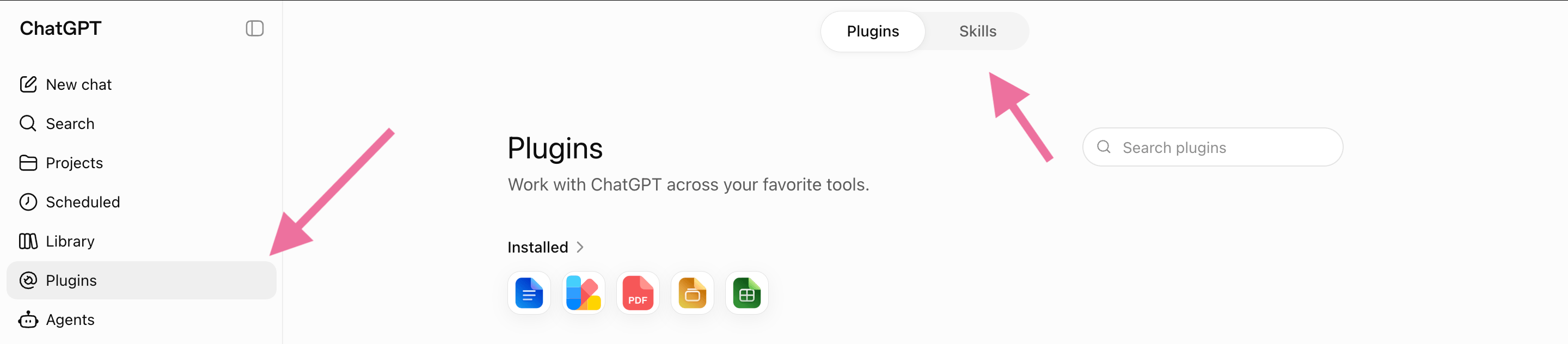
  1. In ChatGPT, open Plugins.
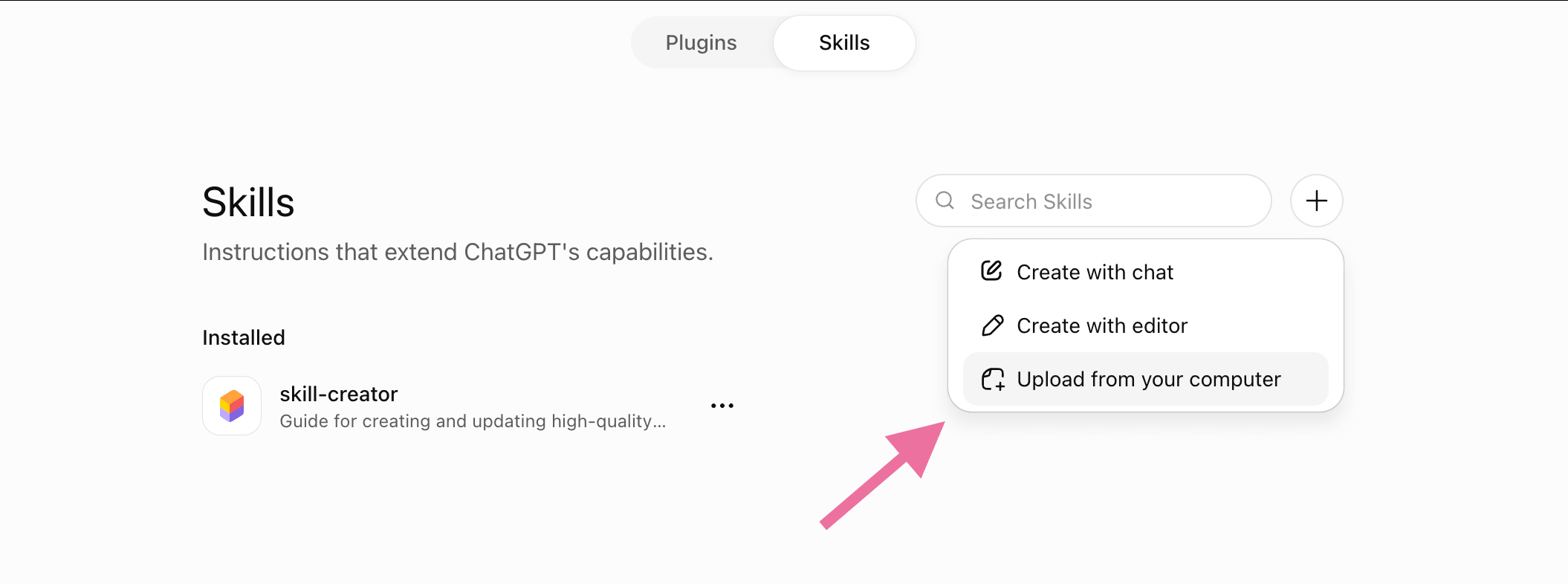
  2. Select the Skills tab.
  1. Press the + button.
  2. Choose Upload from your computer.
  1. Select the skill file for the first skill and confirm. ChatGPT reads it and adds it to your Skills list. Repeat for each of the four skills.

Once installed, ChatGPT applies the relevant skill automatically when a request matches it, or you can call one explicitly by typing @ and the skill's name. As in Claude, share your inputs in the chat and ChatGPT produces the finished document.

Getting the most from the skills

Each Deeper Signals skill turns everyday assessment work into a defensible document. One skill drafts the financial case, another runs the evidence review, another builds the coaching plan, and another produces the leadership narrative.

Start with one skill and one real task. Seeing a single finished document is the fastest way to understand what the rest can do.

Ready when you are. HR practitioners building more defensible assessment work are already using these skills. Get the free skills.

For more detailed installation guidance, refer to Anthropic’s official guide, or OpenAI's Skills in ChatGPT help article.


FAQ

Which plans do I need?

In Claude, Skills work across Free, Pro, Max, Team, and Enterprise plans. They just require code execution to be enabled (Settings > Capabilities). In ChatGPT, Skills are available on Business, Enterprise, Healthcare, and Edu plans, not on personal Free, Plus, or Pro accounts.

Can I use these skills in both Claude and ChatGPT?

Yes. Because they use the open Agent Skills standard, the same ZIP works in both. In Claude, go to Customize > Skills > Add > Upload a skill. In ChatGPT, open Plugins > Skills tab > press + > Upload from your computer. In ChatGPT, an admin may also need to enable Skills for your workspace first.

Why is my skill greyed out or missing?

In Claude, a greyed-out skill almost always means code execution is off. Enable "Code execution and file creation" in Settings, or ask your organization owner to switch it on for Team and Enterprise accounts. In ChatGPT, a missing Skills area usually comes down to plan eligibility or an admin not having turned Skills on yet.

What happens to the data I upload?

Your inputs are processed inside your own session, in Claude or ChatGPT, to generate the document. For details on data handling, follow your organization's data policy for whichever tool you use.

Can I edit the skill later?

Yes. In either tool, open the skill in your list to adjust it, or upload an updated version and switch off the old one.

All posts

How to Install the Deeper Signals AI Skills

Author
Dariia Komarova
Created on
July 14, 2026

Installing the Deeper Signals AI skills takes about two minutes. Just download the files with the skills and add them to your GenAI, where they switch on automatically. From that point, you can use these skills whenever you ask for them in a chat.

The skills follow the open Agent Skills standard, so the same download works in both Claude and ChatGPT. This guide walks through the process for each, with screenshots for the steps.

Installing the skills in Claude

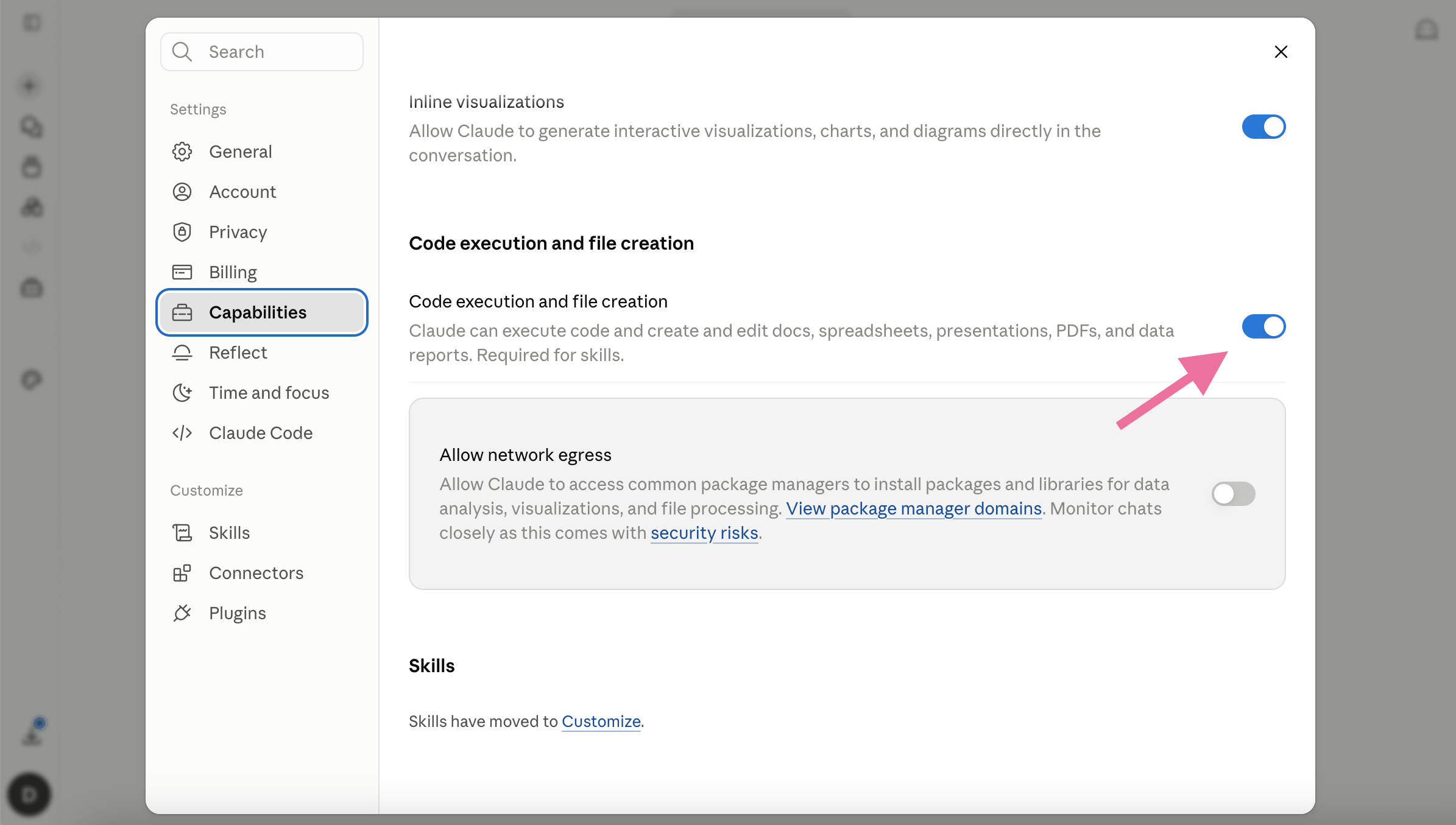
Before you start: turn on code execution. Skills run code, so Claude needs one setting enabled first. Go to Settings > Capabilities and switch on Code execution and file creation. Without it, your skill will not run and will appear greyed out in the list. On Team and Enterprise plans, an organization owner enables this once for everyone.
Step 1: Download the skills

Press the Download button and grab the skill you want, or all four. Your selection arrives as a single ZIP file. Unzip it to find a folder for each skill you chose.

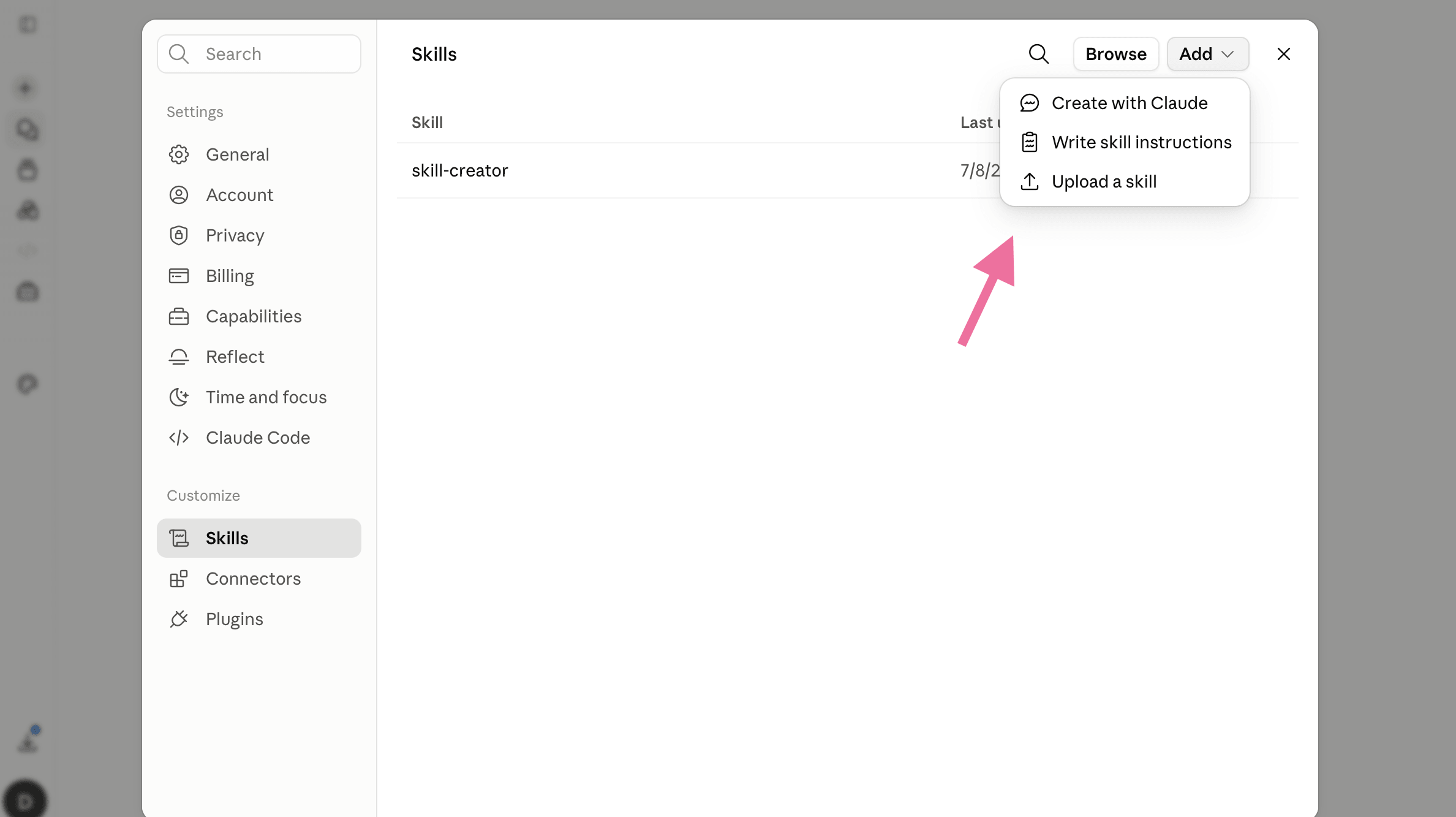
Step 2: Open Customize > Skills

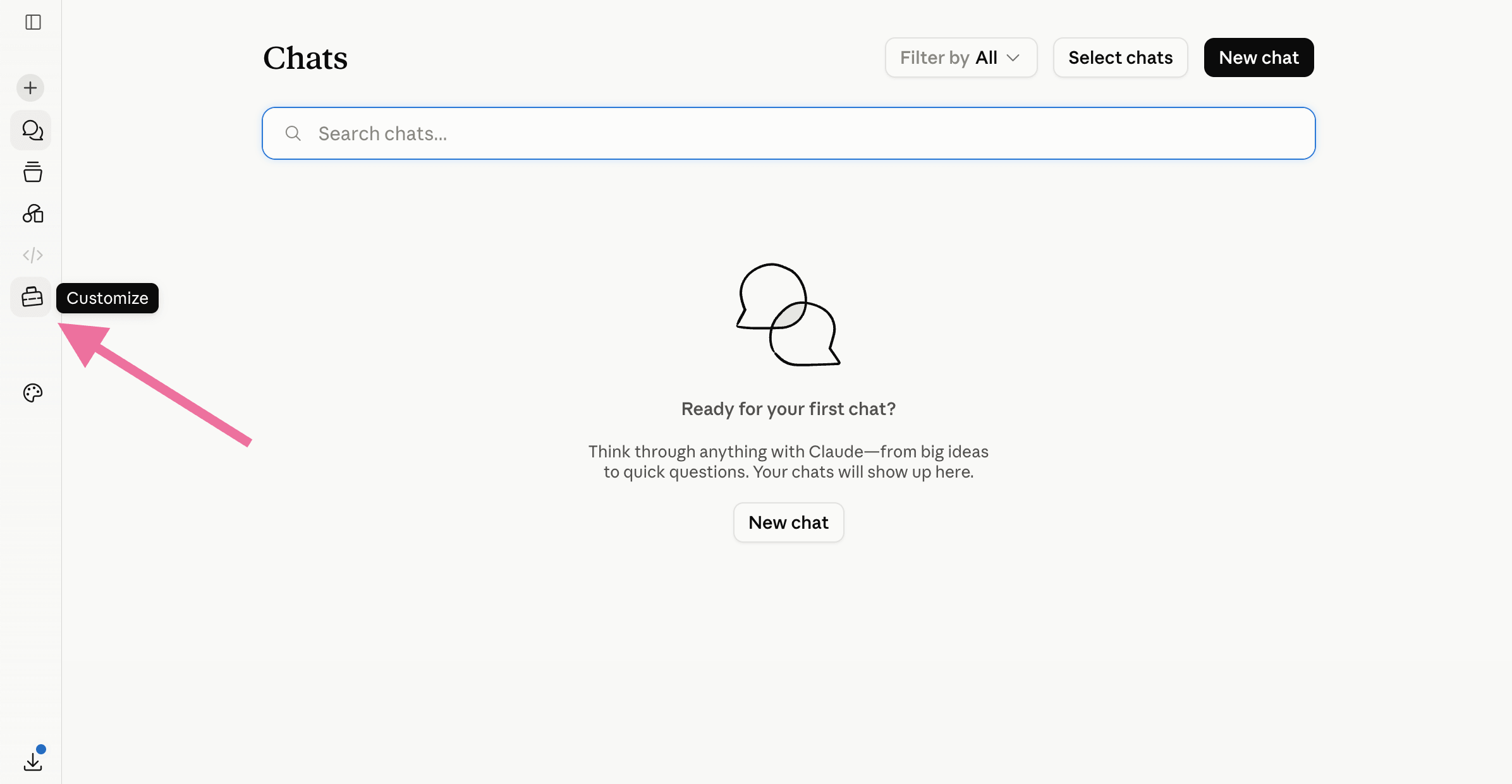
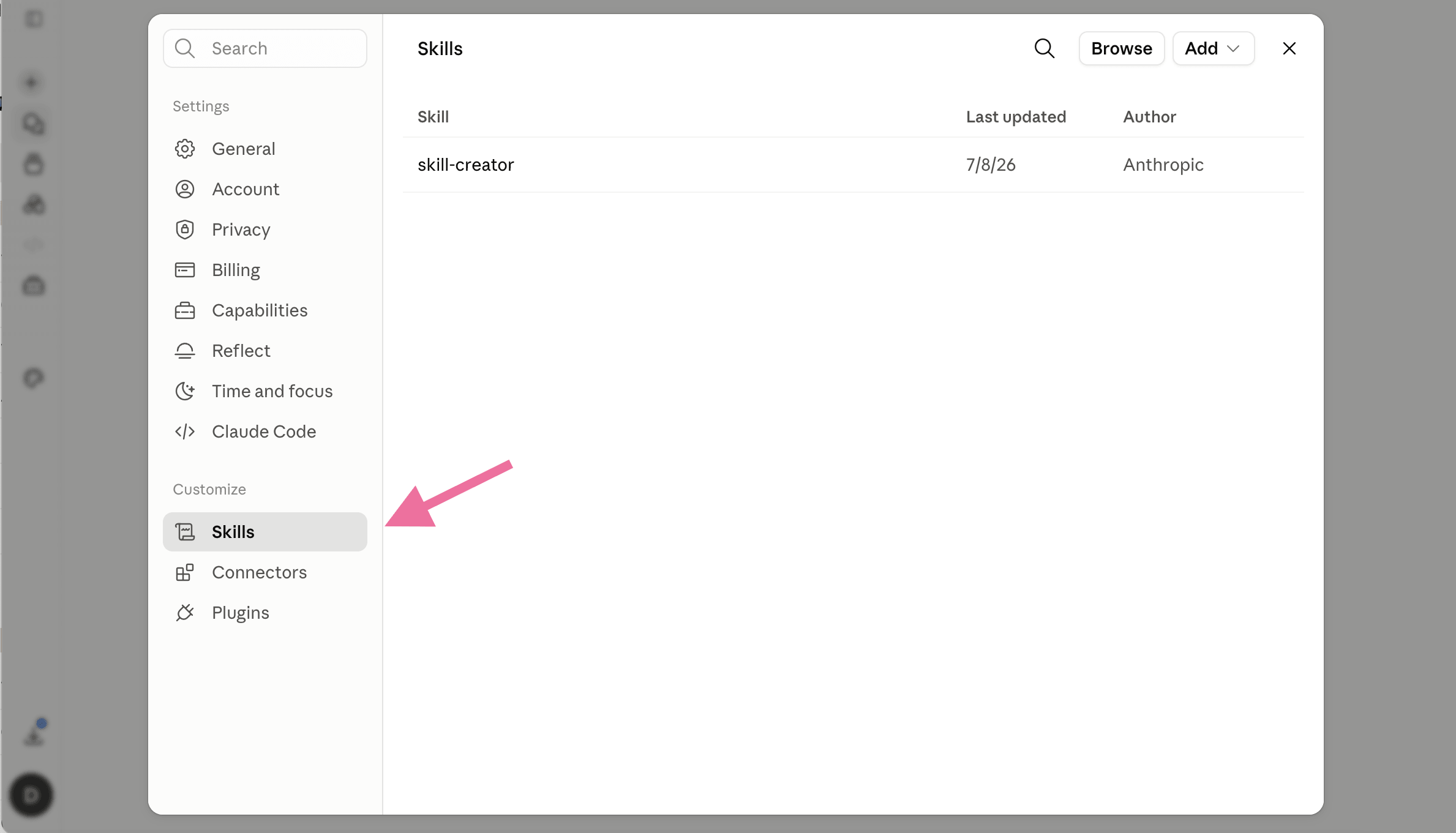
In the Claude app, on web or desktop, open the left sidebar and click Customize. Then click Skills. This is where all of your skills live, including any built-in ones from Anthropic.
Step 3: Upload the skills

Click Add, then choose Upload a skill, and select the skill's folder. Claude reads the skill and shows you a short summary of what it does. Repeat for each of the four folders, so all four skills are added.

Each skill appears in your list already switched on and ready to use. If you ever want to disable one, open it and toggle it off. Custom skills you upload stay private to your own account. On Team or Enterprise plans, an owner can later share approved skills across the organization.
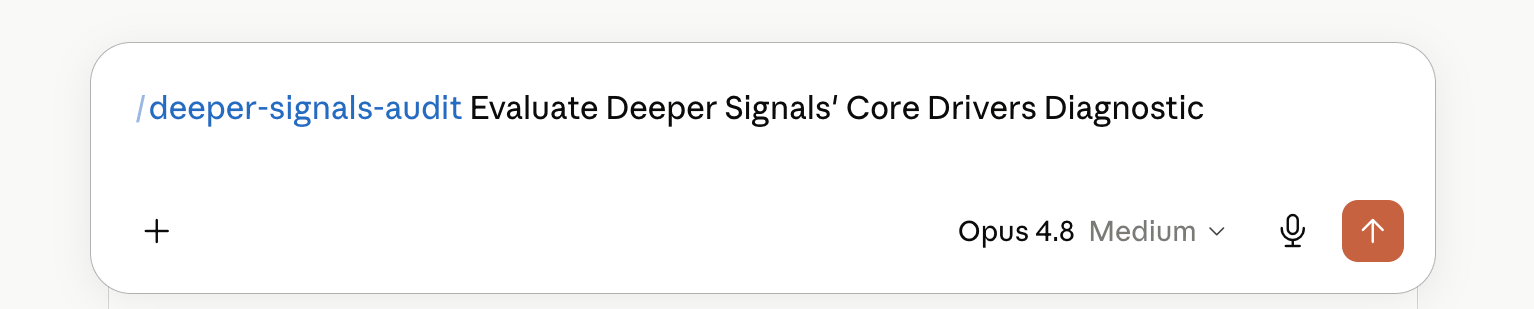
Step 4: Use the skill in any chat

Open a new conversation and describe what you need. You can invoke a skill by name, or simply make a request that matches what one of the skills does, and Claude picks it up automatically. Share your inputs, such as an assessment report, and Claude generates the final document.

Installing the skills in ChatGPT

If your team runs on ChatGPT instead of Claude, you can upload the skills there in a few clicks.

A couple of things to know first. ChatGPT Skills are currently available on Business, Enterprise, Edu, Teachers, and Healthcare plans, so you will not see the option on the standard consumer tiers. On Enterprise and Edu workspaces, Skills are off by default, so a workspace admin needs to enable them (and the uploading permission) before you can add your own.

Once that is in place:

  1. In ChatGPT, open Plugins.
  2. Select the Skills tab.
  1. Press the + button.
  2. Choose Upload from your computer.
  1. Select the skill file for the first skill and confirm. ChatGPT reads it and adds it to your Skills list. Repeat for each of the four skills.

Once installed, ChatGPT applies the relevant skill automatically when a request matches it, or you can call one explicitly by typing @ and the skill's name. As in Claude, share your inputs in the chat and ChatGPT produces the finished document.

Getting the most from the skills

Each Deeper Signals skill turns everyday assessment work into a defensible document. One skill drafts the financial case, another runs the evidence review, another builds the coaching plan, and another produces the leadership narrative.

Start with one skill and one real task. Seeing a single finished document is the fastest way to understand what the rest can do.

Ready when you are. HR practitioners building more defensible assessment work are already using these skills. Get the free skills.

For more detailed installation guidance, refer to Anthropic’s official guide, or OpenAI's Skills in ChatGPT help article.


FAQ

Which plans do I need?

In Claude, Skills work across Free, Pro, Max, Team, and Enterprise plans. They just require code execution to be enabled (Settings > Capabilities). In ChatGPT, Skills are available on Business, Enterprise, Healthcare, and Edu plans, not on personal Free, Plus, or Pro accounts.

Can I use these skills in both Claude and ChatGPT?

Yes. Because they use the open Agent Skills standard, the same ZIP works in both. In Claude, go to Customize > Skills > Add > Upload a skill. In ChatGPT, open Plugins > Skills tab > press + > Upload from your computer. In ChatGPT, an admin may also need to enable Skills for your workspace first.

Why is my skill greyed out or missing?

In Claude, a greyed-out skill almost always means code execution is off. Enable "Code execution and file creation" in Settings, or ask your organization owner to switch it on for Team and Enterprise accounts. In ChatGPT, a missing Skills area usually comes down to plan eligibility or an admin not having turned Skills on yet.

What happens to the data I upload?

Your inputs are processed inside your own session, in Claude or ChatGPT, to generate the document. For details on data handling, follow your organization's data policy for whichever tool you use.

Can I edit the skill later?

Yes. In either tool, open the skill in your list to adjust it, or upload an updated version and switch off the old one.

All posts

How to Install the Deeper Signals AI Skills

Author
Dariia Komarova
Created on
July 22, 2026

Installing the Deeper Signals AI skills takes about two minutes. Just download the files with the skills and add them to your GenAI, where they switch on automatically. From that point, you can use these skills whenever you ask for them in a chat.

The skills follow the open Agent Skills standard, so the same download works in both Claude and ChatGPT. This guide walks through the process for each, with screenshots for the steps.

Installing the skills in Claude

Before you start: turn on code execution. Skills run code, so Claude needs one setting enabled first. Go to Settings > Capabilities and switch on Code execution and file creation. Without it, your skill will not run and will appear greyed out in the list. On Team and Enterprise plans, an organization owner enables this once for everyone.

Step 1: Download the skills

Press the Download button and grab the skill you want, or all four. Your selection arrives as a single ZIP file. Unzip it to find a folder for each skill you chose.

Step 2: Open Customize > Skills

In the Claude app, on web or desktop, open the left sidebar and click Customize. Then click Skills. This is where all of your skills live, including any built-in ones from Anthropic.

Step 3: Upload the skills

Click Add, then choose Upload a skill, and select the skill's folder. Claude reads the skill and shows you a short summary of what it does. Repeat for each of the four folders, so all four skills are added.

Each skill appears in your list already switched on and ready to use. If you ever want to disable one, open it and toggle it off. Custom skills you upload stay private to your own account. On Team or Enterprise plans, an owner can later share approved skills across the organization.

Step 4: Use the skill in any chat

Open a new conversation and describe what you need. You can invoke a skill by name, or simply make a request that matches what one of the skills does, and Claude picks it up automatically. Share your inputs, such as an assessment report, and Claude generates the final document.


Installing the skills in ChatGPT

If your team runs on ChatGPT instead of Claude, you can upload the skills there in a few clicks.

A couple of things to know first. ChatGPT Skills are currently available on Business, Enterprise, Edu, Teachers, and Healthcare plans, so you will not see the option on the standard consumer tiers. On Enterprise and Edu workspaces, Skills are off by default, so a workspace admin needs to enable them (and the uploading permission) before you can add your own.

Once that is in place:

  1. In ChatGPT, open Plugins.
  2. Select the Skills tab.
  1. Press the + button.
  2. Choose Upload from your computer.
  1. Select the skill file for the first skill and confirm. ChatGPT reads it and adds it to your Skills list. Repeat for each of the four skills.

Once installed, ChatGPT applies the relevant skill automatically when a request matches it, or you can call one explicitly by typing @ and the skill's name. As in Claude, share your inputs in the chat and ChatGPT produces the finished document.

Getting the most from the skills

Each Deeper Signals skill turns everyday assessment work into a defensible document. One skill drafts the financial case, another runs the evidence review, another builds the coaching plan, and another produces the leadership narrative.

Start with one skill and one real task. Seeing a single finished document is the fastest way to understand what the rest can do.

Ready when you are. HR practitioners building more defensible assessment work are already using these skills. Get the free skills.

For more detailed installation guidance, refer to Anthropic’s official guide, or OpenAI's Skills in ChatGPT help article.


FAQ

Which plans do I need?

In Claude, Skills work across Free, Pro, Max, Team, and Enterprise plans. They just require code execution to be enabled (Settings > Capabilities). In ChatGPT, Skills are available on Business, Enterprise, Healthcare, and Edu plans, not on personal Free, Plus, or Pro accounts.

Can I use these skills in both Claude and ChatGPT?

Yes. Because they use the open Agent Skills standard, the same ZIP works in both. In Claude, go to Customize > Skills > Add > Upload a skill. In ChatGPT, open Plugins > Skills tab > press + > Upload from your computer. In ChatGPT, an admin may also need to enable Skills for your workspace first.

Why is my skill greyed out or missing?

In Claude, a greyed-out skill almost always means code execution is off. Enable "Code execution and file creation" in Settings, or ask your organization owner to switch it on for Team and Enterprise accounts. In ChatGPT, a missing Skills area usually comes down to plan eligibility or an admin not having turned Skills on yet.

What happens to the data I upload?

Your inputs are processed inside your own session, in Claude or ChatGPT, to generate the document. For details on data handling, follow your organization's data policy for whichever tool you use.

Can I edit the skill later?

Yes. In either tool, open the skill in your list to adjust it, or upload an updated version and switch off the old one.

All posts

How to Install the Deeper Signals AI Skills

Author
Dariia Komarova
Created on
July 22, 2026

Installing the Deeper Signals AI skills takes about two minutes. Just download the files with the skills and add them to your GenAI, where they switch on automatically. From that point, you can use these skills whenever you ask for them in a chat.

The skills follow the open Agent Skills standard, so the same download works in both Claude and ChatGPT. This guide walks through the process for each, with screenshots for the steps.

Installing the skills in Claude

Before you start: turn on code execution. Skills run code, so Claude needs one setting enabled first. Go to Settings > Capabilities and switch on Code execution and file creation. Without it, your skill will not run and will appear greyed out in the list. On Team and Enterprise plans, an organization owner enables this once for everyone.

Step 1: Download the skills

Press the Download button and grab the skill you want, or all four. Your selection arrives as a single ZIP file. Unzip it to find a folder for each skill you chose.

Step 2: Open Customize > Skills

In the Claude app, on web or desktop, open the left sidebar and click Customize. Then click Skills. This is where all of your skills live, including any built-in ones from Anthropic.

Step 3: Upload the skills

Click Add, then choose Upload a skill, and select the skill's folder. Claude reads the skill and shows you a short summary of what it does. Repeat for each of the four folders, so all four skills are added.

Each skill appears in your list already switched on and ready to use. If you ever want to disable one, open it and toggle it off. Custom skills you upload stay private to your own account. On Team or Enterprise plans, an owner can later share approved skills across the organization.

Step 4: Use the skill in any chat

Open a new conversation and describe what you need. You can invoke a skill by name, or simply make a request that matches what one of the skills does, and Claude picks it up automatically. Share your inputs, such as an assessment report, and Claude generates the final document.


Installing the skills in ChatGPT

If your team runs on ChatGPT instead of Claude, you can upload the skills there in a few clicks.

A couple of things to know first. ChatGPT Skills are currently available on Business, Enterprise, Edu, Teachers, and Healthcare plans, so you will not see the option on the standard consumer tiers. On Enterprise and Edu workspaces, Skills are off by default, so a workspace admin needs to enable them (and the uploading permission) before you can add your own.

Once that is in place:

  1. In ChatGPT, open Plugins.
  2. Select the Skills tab.
  1. Press the + button.
  2. Choose Upload from your computer.
  1. Select the skill file for the first skill and confirm. ChatGPT reads it and adds it to your Skills list. Repeat for each of the four skills.

Once installed, ChatGPT applies the relevant skill automatically when a request matches it, or you can call one explicitly by typing @ and the skill's name. As in Claude, share your inputs in the chat and ChatGPT produces the finished document.

Getting the most from the skills

Each Deeper Signals skill turns everyday assessment work into a defensible document. One skill drafts the financial case, another runs the evidence review, another builds the coaching plan, and another produces the leadership narrative.

Start with one skill and one real task. Seeing a single finished document is the fastest way to understand what the rest can do.

Ready when you are. HR practitioners building more defensible assessment work are already using these skills. Get the free skills.

For more detailed installation guidance, refer to Anthropic’s official guide, or OpenAI's Skills in ChatGPT help article.


FAQ

Which plans do I need?

In Claude, Skills work across Free, Pro, Max, Team, and Enterprise plans. They just require code execution to be enabled (Settings > Capabilities). In ChatGPT, Skills are available on Business, Enterprise, Healthcare, and Edu plans, not on personal Free, Plus, or Pro accounts.

Can I use these skills in both Claude and ChatGPT?

Yes. Because they use the open Agent Skills standard, the same ZIP works in both. In Claude, go to Customize > Skills > Add > Upload a skill. In ChatGPT, open Plugins > Skills tab > press + > Upload from your computer. In ChatGPT, an admin may also need to enable Skills for your workspace first.

Why is my skill greyed out or missing?

In Claude, a greyed-out skill almost always means code execution is off. Enable "Code execution and file creation" in Settings, or ask your organization owner to switch it on for Team and Enterprise accounts. In ChatGPT, a missing Skills area usually comes down to plan eligibility or an admin not having turned Skills on yet.

What happens to the data I upload?

Your inputs are processed inside your own session, in Claude or ChatGPT, to generate the document. For details on data handling, follow your organization's data policy for whichever tool you use.

Can I edit the skill later?

Yes. In either tool, open the skill in your list to adjust it, or upload an updated version and switch off the old one.

All posts

How to Install the Deeper Signals AI Skills

Customer
Job Title

Installing the Deeper Signals AI skills takes about two minutes. Just download the files with the skills and add them to your GenAI, where they switch on automatically. From that point, you can use these skills whenever you ask for them in a chat.

The skills follow the open Agent Skills standard, so the same download works in both Claude and ChatGPT. This guide walks through the process for each, with screenshots for the steps.

Installing the skills in Claude

Before you start: turn on code execution. Skills run code, so Claude needs one setting enabled first. Go to Settings > Capabilities and switch on Code execution and file creation. Without it, your skill will not run and will appear greyed out in the list. On Team and Enterprise plans, an organization owner enables this once for everyone.

Step 1: Download the skills

Press the Download button and grab the skill you want, or all four. Your selection arrives as a single ZIP file. Unzip it to find a folder for each skill you chose.

Step 2: Open Customize > Skills

In the Claude app, on web or desktop, open the left sidebar and click Customize. Then click Skills. This is where all of your skills live, including any built-in ones from Anthropic.

Step 3: Upload the skills

Click Add, then choose Upload a skill, and select the skill's folder. Claude reads the skill and shows you a short summary of what it does. Repeat for each of the four folders, so all four skills are added.

Each skill appears in your list already switched on and ready to use. If you ever want to disable one, open it and toggle it off. Custom skills you upload stay private to your own account. On Team or Enterprise plans, an owner can later share approved skills across the organization.

Step 4: Use the skill in any chat

Open a new conversation and describe what you need. You can invoke a skill by name, or simply make a request that matches what one of the skills does, and Claude picks it up automatically. Share your inputs, such as an assessment report, and Claude generates the final document.


Installing the skills in ChatGPT

If your team runs on ChatGPT instead of Claude, you can upload the skills there in a few clicks.

A couple of things to know first. ChatGPT Skills are currently available on Business, Enterprise, Edu, Teachers, and Healthcare plans, so you will not see the option on the standard consumer tiers. On Enterprise and Edu workspaces, Skills are off by default, so a workspace admin needs to enable them (and the uploading permission) before you can add your own.

Once that is in place:

  1. In ChatGPT, open Plugins.
  2. Select the Skills tab.
  1. Press the + button.
  2. Choose Upload from your computer.
  1. Select the skill file for the first skill and confirm. ChatGPT reads it and adds it to your Skills list. Repeat for each of the four skills.

Once installed, ChatGPT applies the relevant skill automatically when a request matches it, or you can call one explicitly by typing @ and the skill's name. As in Claude, share your inputs in the chat and ChatGPT produces the finished document.

Getting the most from the skills

Each Deeper Signals skill turns everyday assessment work into a defensible document. One skill drafts the financial case, another runs the evidence review, another builds the coaching plan, and another produces the leadership narrative.

Start with one skill and one real task. Seeing a single finished document is the fastest way to understand what the rest can do.

Ready when you are. HR practitioners building more defensible assessment work are already using these skills. Get the free skills.

For more detailed installation guidance, refer to Anthropic’s official guide, or OpenAI's Skills in ChatGPT help article.


FAQ

Which plans do I need?

In Claude, Skills work across Free, Pro, Max, Team, and Enterprise plans. They just require code execution to be enabled (Settings > Capabilities). In ChatGPT, Skills are available on Business, Enterprise, Healthcare, and Edu plans, not on personal Free, Plus, or Pro accounts.

Can I use these skills in both Claude and ChatGPT?

Yes. Because they use the open Agent Skills standard, the same ZIP works in both. In Claude, go to Customize > Skills > Add > Upload a skill. In ChatGPT, open Plugins > Skills tab > press + > Upload from your computer. In ChatGPT, an admin may also need to enable Skills for your workspace first.

Why is my skill greyed out or missing?

In Claude, a greyed-out skill almost always means code execution is off. Enable "Code execution and file creation" in Settings, or ask your organization owner to switch it on for Team and Enterprise accounts. In ChatGPT, a missing Skills area usually comes down to plan eligibility or an admin not having turned Skills on yet.

What happens to the data I upload?

Your inputs are processed inside your own session, in Claude or ChatGPT, to generate the document. For details on data handling, follow your organization's data policy for whichever tool you use.

Can I edit the skill later?

Yes. In either tool, open the skill in your list to adjust it, or upload an updated version and switch off the old one.

Ready for your Spotlight?
Contact us to book your Customer Spotlight and showcase your work to an extensive, global audience!
Start your free trial today
Free access to Deeper Signals’ quick, scientific assessments, feedback tools, and more.
Start Free Trial
Recent posts
Guides & Tips
How to Turn Executive Assessment Data into a Leadership Narrative with an AI Skill
Psychometrics, 360s, interviews, references — this free Deeper Signals skill codes it all against a role's success criteria into an auditable leadership narrative.
Read more
Guides & Tips
How to Review an Assessment's Evidence Base with an AI Skill
How well is that assessment actually evidenced? This free Deeper Signals AI skill maps any instrument against the APA, SIOP, EFPA, and ITC standards.
Read more
Guides & Tips
How to Create a Coaching Plan from Assessment Results in Under 10 Minutes
Learn how Deeper Signals' free Development Plan skill turns assessment results into a coach-ready plan in under 10 minutes.
Read more
Guides & Tips
How to Build a Finance-Ready Business Case with the Assessment ROI Calculator
See how Deeper Signals' free Assessment ROI Calculator turns a few workforce data points into a finance-ready business case for assessment investment.
Read more
Guides & Tips
How to Install the Deeper Signals AI Skills
Install all four Deeper Signals AI skills in about two minutes. This step-by-step guide, with screenshots, shows you how to set them up and use them in any chat.
Read more
Want more articles like this?
Subscribe to our newsletter
Practical insights on people and performance, delivered to your inbox
Subscribe
Recent posts
Guides & Tips
How to Turn Executive Assessment Data into a Leadership Narrative with an AI Skill
Psychometrics, 360s, interviews, references — this free Deeper Signals skill codes it all against a role's success criteria into an auditable leadership narrative.
Read more
Guides & Tips
How to Review an Assessment's Evidence Base with an AI Skill
How well is that assessment actually evidenced? This free Deeper Signals AI skill maps any instrument against the APA, SIOP, EFPA, and ITC standards.
Read more
Guides & Tips
How to Create a Coaching Plan from Assessment Results in Under 10 Minutes
Learn how Deeper Signals' free Development Plan skill turns assessment results into a coach-ready plan in under 10 minutes.
Read more
Guides & Tips
How to Build a Finance-Ready Business Case with the Assessment ROI Calculator
See how Deeper Signals' free Assessment ROI Calculator turns a few workforce data points into a finance-ready business case for assessment investment.
Read more
Guides & Tips
How to Install the Deeper Signals AI Skills
Install all four Deeper Signals AI skills in about two minutes. This step-by-step guide, with screenshots, shows you how to set them up and use them in any chat.
Read more
Curious to learn more?

Schedule a call with Deeper Signals to understand how our assessments and feedback tools help people gain a deep awareness of their talents and reach their full potential. Underpinned by science and technology, we build talented people, leaders and companies.

  • Scalable and engaging assessment solutions
  • Measurable and predictive talent insights
  • Powered by technology and science that drives results
Let's talk!
  • Scalable interventions for growth
  • Measurable data, insights and outcomes for high performance
  • Proven scientific expertise that links results to outcomes
Thank you!
Would you like to schedule a meeting?
Please fill all fields before submitting the form.
All posts

Heading

Author
This is some text inside of a div block.
Created on
This is some text inside of a div block.

Heading 1

Heading 2

Heading 3

Heading 4

Heading 5
Heading 6

Lorem ipsum dolor sit amet, consectetur adipiscing elit, sed do eiusmod tempor incididunt ut labore et dolore magna aliqua. Ut enim ad minim veniam, quis nostrud exercitation ullamco laboris nisi ut aliquip ex ea commodo consequat. Duis aute irure dolor in reprehenderit in voluptate velit esse cillum dolore eu fugiat nulla pariatur.

Block quote

Ordered list

  1. Item 1
  2. Item 2
  3. Item 3

Unordered list

  • Item A
  • Item B
  • Item C

Text link

Bold text

Emphasis

Superscript

Subscript